
If your account is already active but you have lost the email you can also go directly to the portal here: https://app02.us.bill.com/p/brideministriescoaching
Click Forgot Password
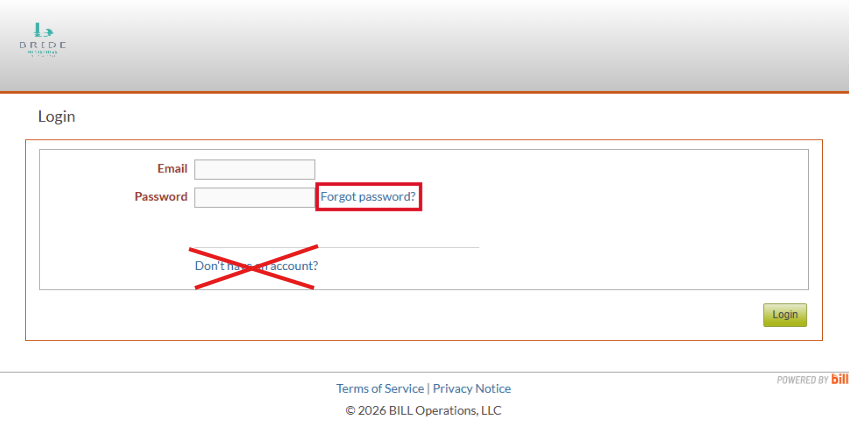
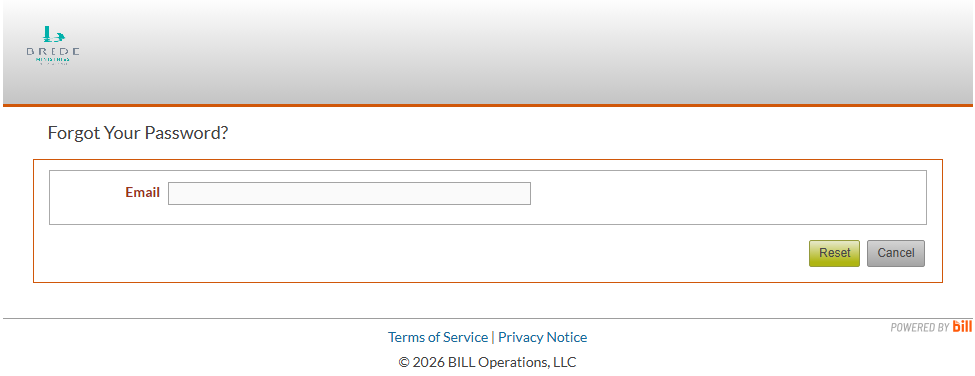
Type the email associated with your account into the box next to Email then click Reset.
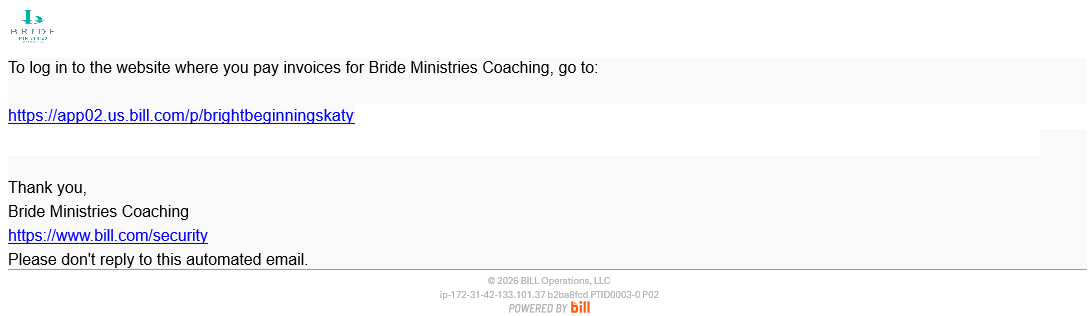
You will receive an email from <no-reply@hq.bill.com> with a link to update your password. Click the first link in the email.
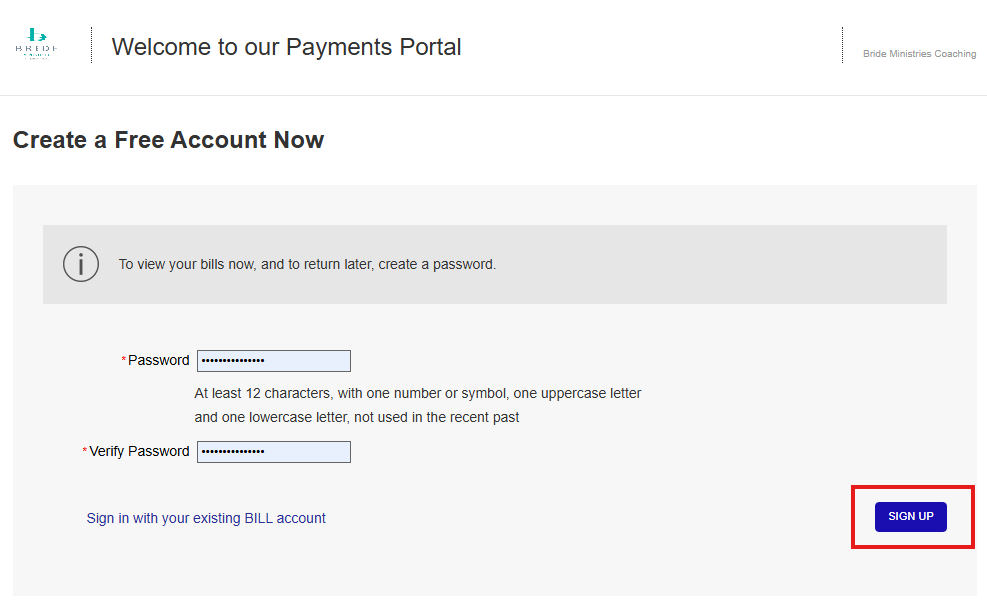
Once the webpage loads, type a password in the Password and Verify Password boxes and then click Sign Up.
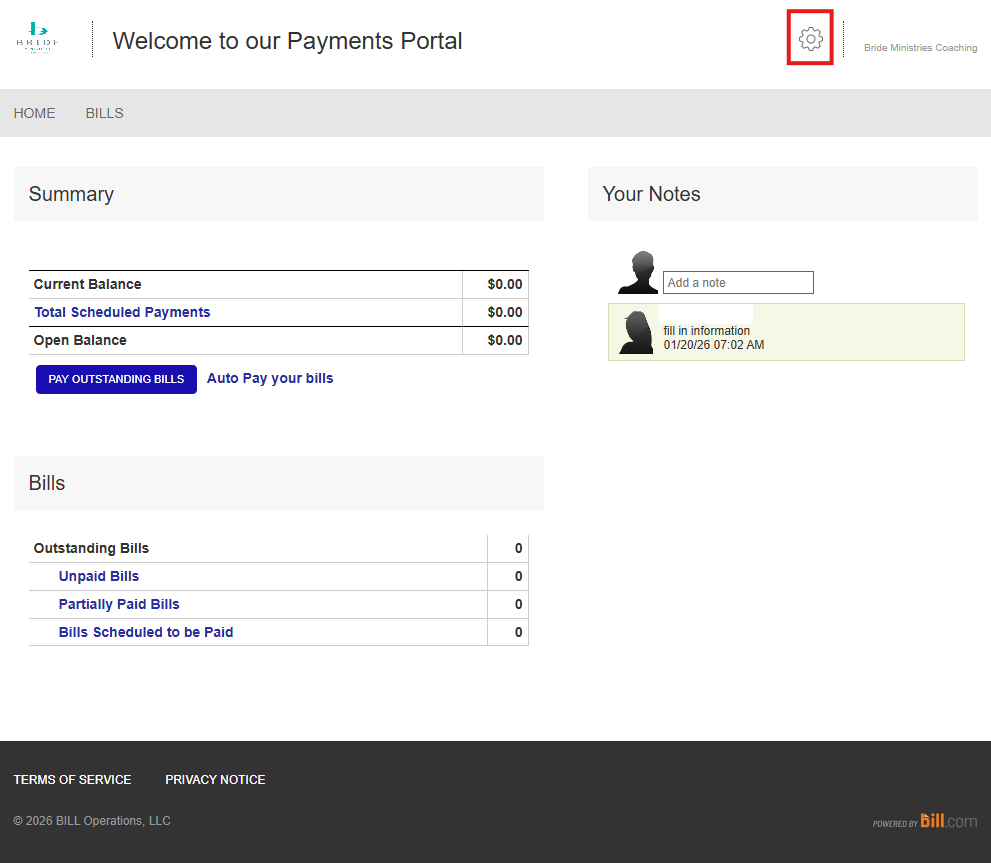
Click to the Gear Icon ⚙️ in the upper right
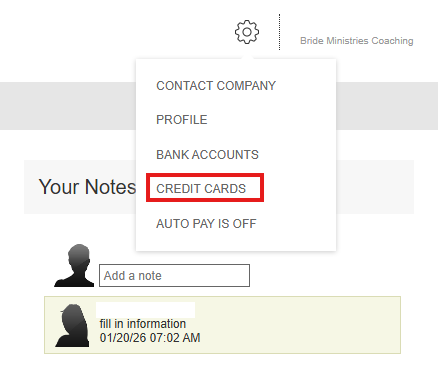
Select Credit Cards or Bank Accounts if you would like the payment method. Only Credit Cards will be demonstrated below.
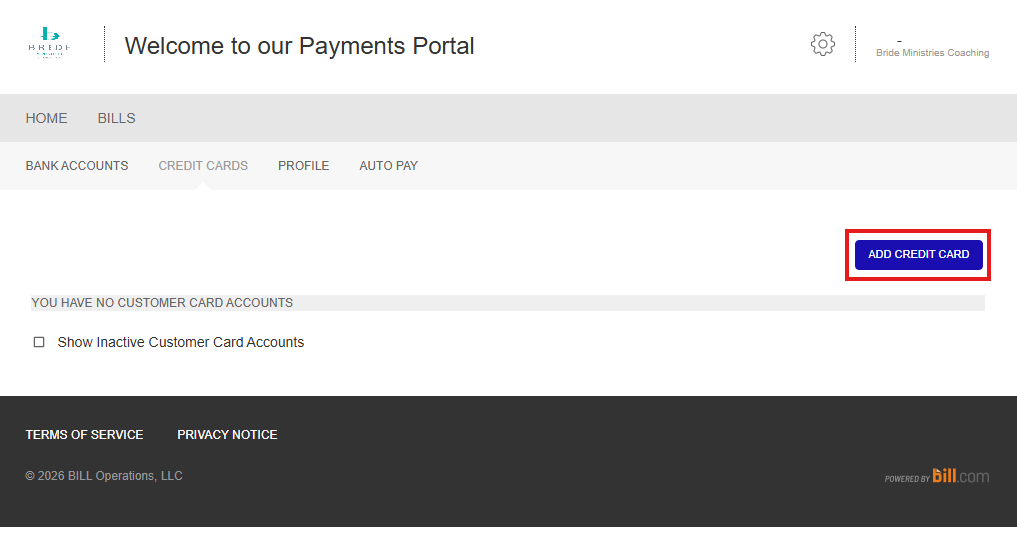
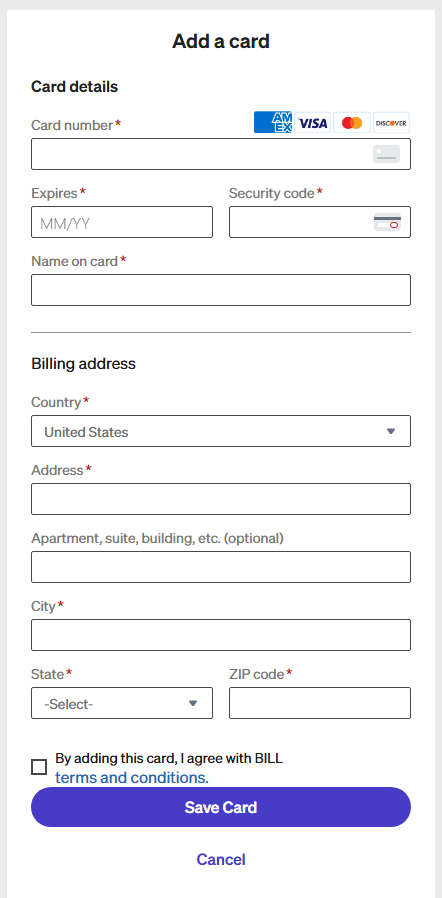
On the next screen select Add Credit Card
Fill in all the credit card information and click Save Card
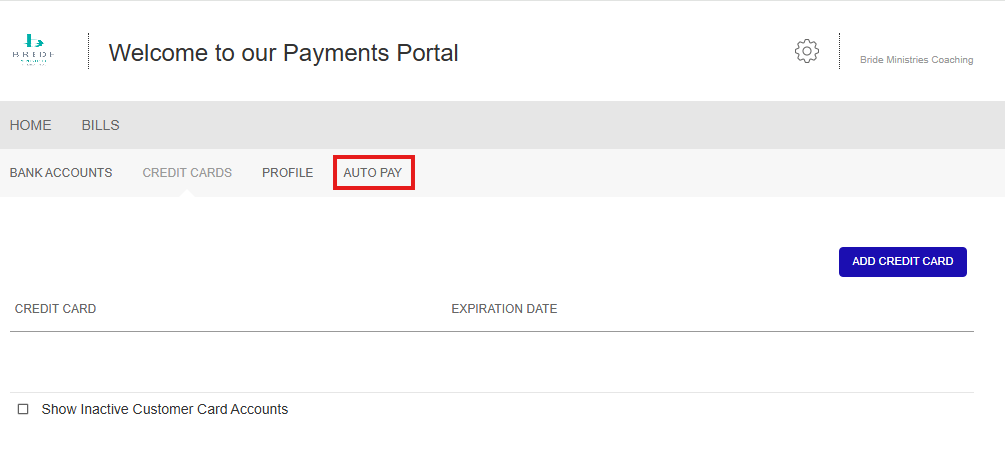
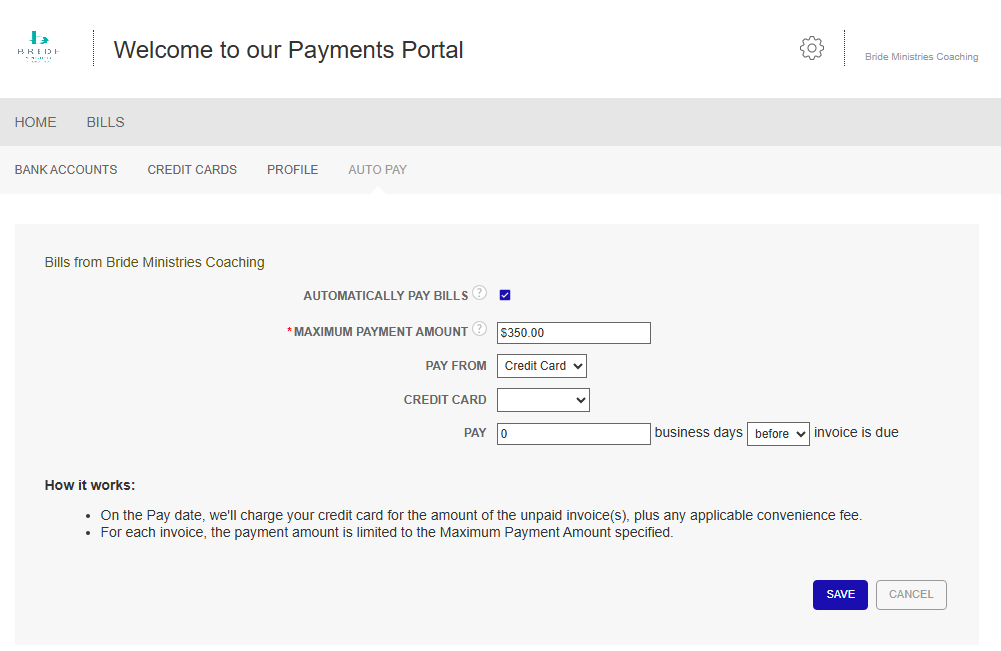
Click Auto Pay
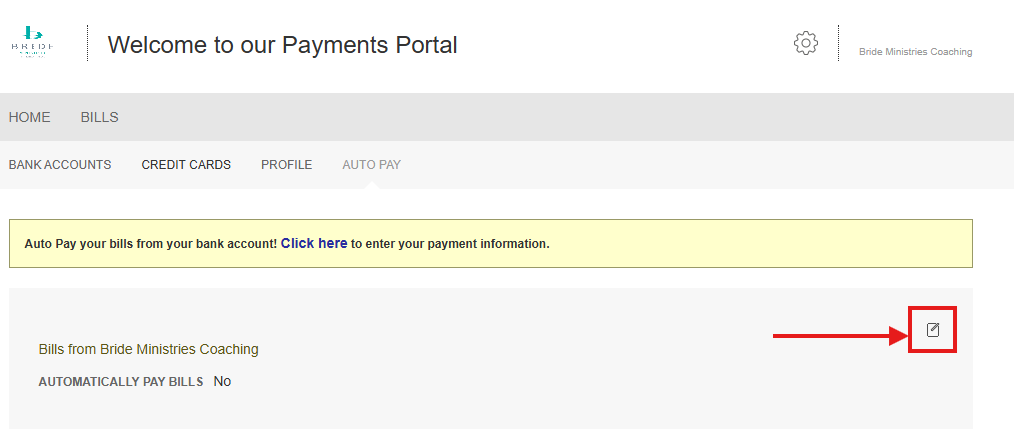
Click the button in the right hand of the screen.
Check the box next to Automatically Pay Bills.
Put $350 in as the maximum payment amount.
The credit card should already be selected in the drop down and 0 business days should also be there by default. Click Save.
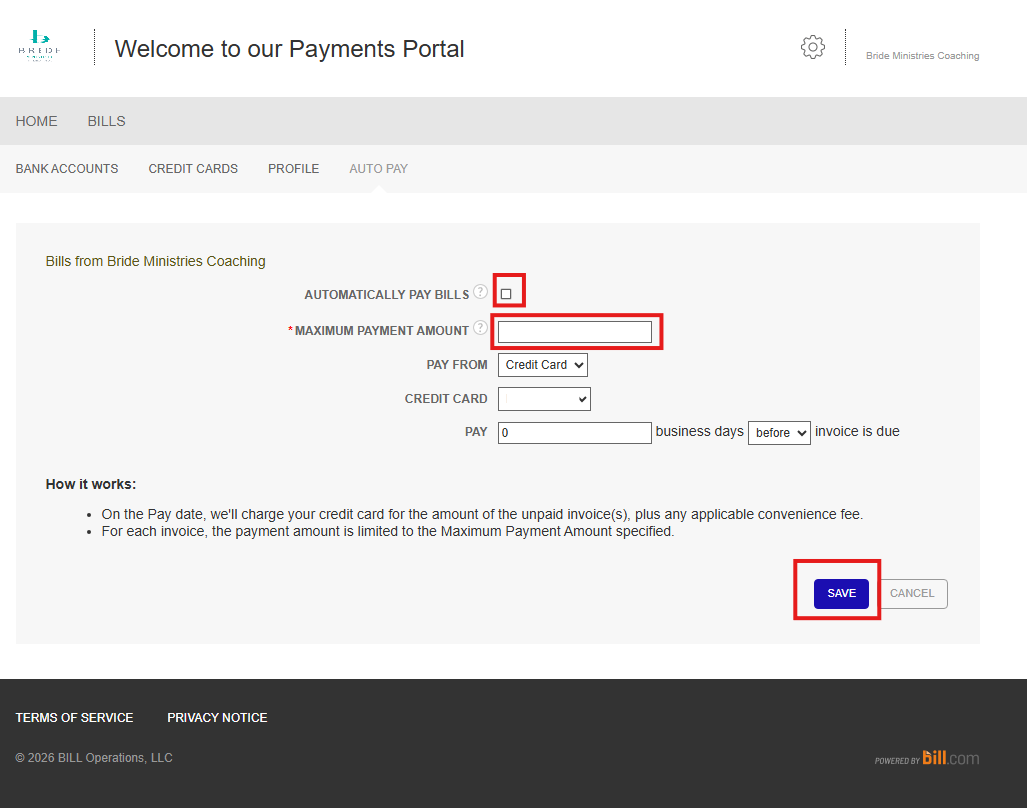
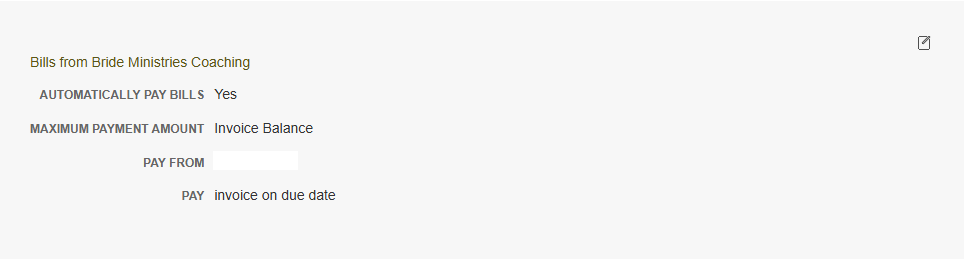
It should look like this when complete with the addition of a credit card number in the applicable box.
Your setup in Bill.com is complete.
Notice: We will update the maximum payment amount to Invoice Balance our end after we get a notice of your setup. If for some reason you want to keep the maximum limit please let us know and we will leave it as it is. Do note that any invoice over that value will not be paid automatically and will autocancel the appointment if not pre-paid.